TLDR
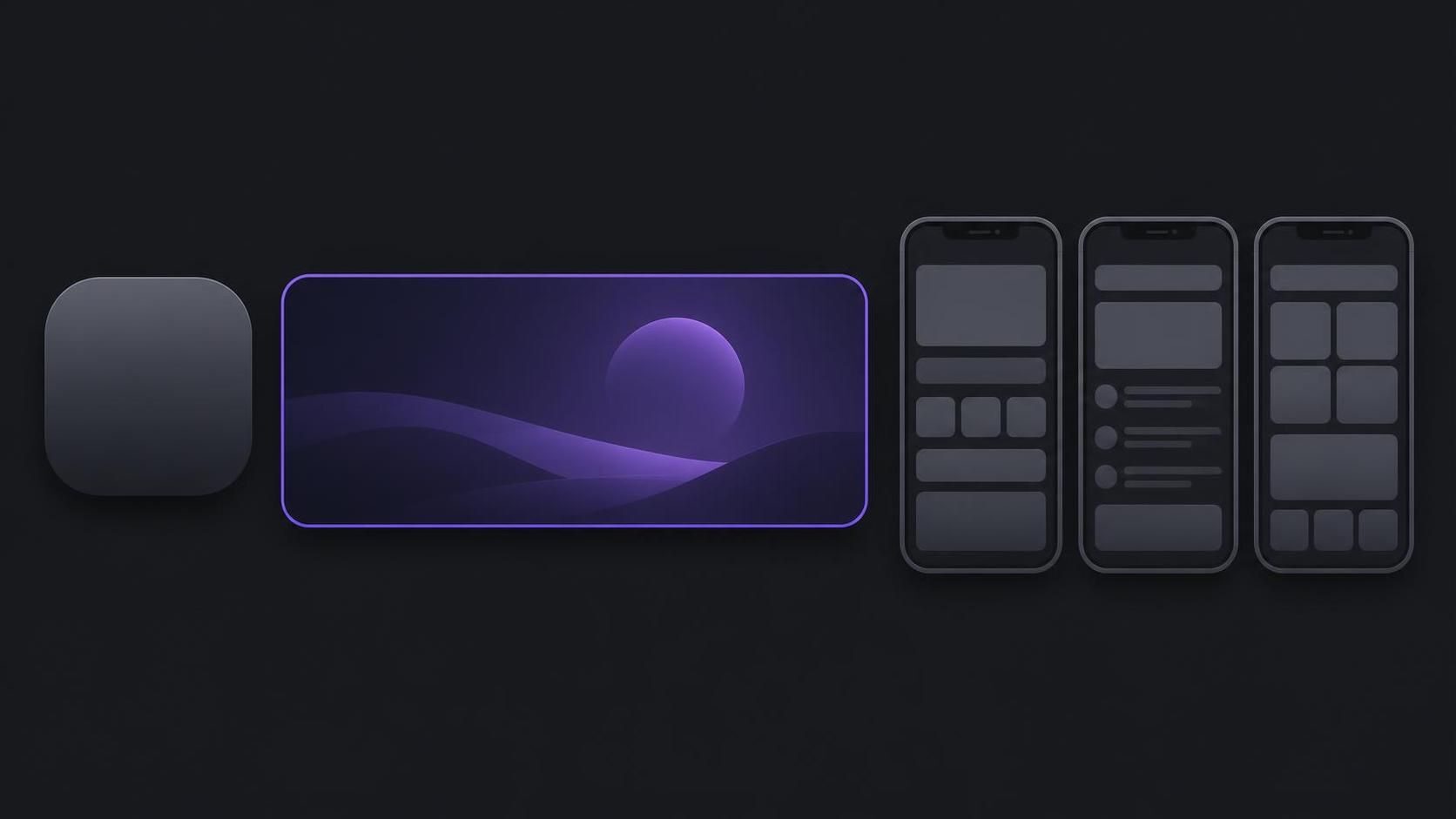
What graphics does a Google Play listing need to publish, and what size is each? Three things: a 512 × 512 px icon, a 1024 × 500 px feature graphic, and at least two screenshots, each side between 320 and 3840 px. To be eligible for recommendations, an app needs four screenshots at 1080 px or more. Tablets, video and other stores come after.
Google Play store listing graphics are a short list with long fine print. This guide goes through the list asset by asset: what each one is, the exact size and file rules from Google's own help pages, what blocks publishing and what only affects where Google shows the app. Then it compares the set with the App Store, adds the Microsoft Store, and ends with one plan that produces all of it.
What graphics does a Google Play listing need to publish, and what size is each?
Google calls these "preview assets" and lists them on one help page, Add preview assets to showcase your app. It says plainly: "You must provide an app icon to publish your store listing" and "You must provide a feature graphic to publish your store listing." For screenshots, the minimum is two across all the device types you support.
The full list, in one table. Everything below comes from that page, read on 13 October 2026.
| Asset | Size | File | Status |
|---|---|---|---|
| App icon | 512 × 512 px | 32-bit PNG with alpha, max 1024 KB | Required |
| Feature graphic | 1024 × 500 px | JPEG or 24-bit PNG, no alpha | Required |
| Screenshots | 320 to 3840 px per side, long side at most twice the short side | JPEG or 24-bit PNG, no alpha | At least 2 across device types; up to 8 per device type |
| Screenshots for recommendations | 1080 × 1920 portrait or 1920 × 1080 landscape, at minimum | Same | 4 for apps, 3 for games |
| Tablet and Chromebook screenshots | 1080 to 7680 px, 16:9 or 9:16 | Same | Optional; at least 4 if you add them |
| Wear OS screenshots | 1:1, at least 384 × 384 px | Same | At least 1 if the app supports Wear OS |
| Android TV | TV screenshots plus a 1280 × 720 px banner | JPEG or 24-bit PNG, no alpha | At least 1 screenshot and the banner for TV apps |
| Android Automotive OS | 800 × 1280 portrait and 1024 × 768 landscape | Same | At least 2 of each if provided |
| Android XR | 8:5, 3840 × 2400 px recommended, 1920 × 1200 minimum | PNG or JPEG, up to 8 MB | 4 to 8 for XR apps |
| Preview video | A YouTube URL | Public or unlisted, ads off | Optional |
Two rules in that table cause most failed uploads. The first is the alpha channel: screenshots and the feature graphic must be JPEG or 24-bit PNG, while the icon is the one asset that is a 32-bit PNG. The second is the 2:1 limit. A full-screen capture from a tall Android phone, such as 1080 × 2400, is 2.22 times as tall as it is wide and breaks it. The Google Play screenshot requirements guide goes through each screenshot rule in detail.
Required to publish vs required to be recommended
Most guides list everything Google says as one set of rules, which makes the minimum look larger than it is and the recommendations look optional. Google's page draws the line itself: "'Requirements' listed on this page are mandatory," while guidelines listed under "Highly recommended" "can help make your app or game more eligible" for promotion, and "Failure to comply with these guidelines will not impact your store listing page."
In practice that gives you two targets:
- The publishing floor. Icon, feature graphic, two screenshots, all in range. A listing with exactly this goes live.
- The recommendation bar. At least four screenshots at 1080 px minimum for apps (three for games), in 9:16 portrait or 16:9 landscape, plus the content guidelines below: real UI first, short taglines, no badges. Google says screenshots "may be displayed throughout Google Play, for instance in search or on the homepage," and the screenshot-based formats there only use apps that clear this bar.
There is no reason to aim for the floor. Four screenshots at 1080 × 1920 cost about the same work as two, and they are what Google needs to show the app outside its own page.
The app icon: a full square, no shadow
Google's icon design specifications are short and specific. The final asset is "Full square," because "Google Play dynamically handles masking. Radius will be equivalent to 30% of icon size." The same goes for depth: "Shadow: None," since Play adds one. Shadows and lighting inside the artwork are fine; a drop shadow around the square is not.
Transparency is allowed by the file format but not by the design: "Transparent assets will display the background color of Google Play UI," which means your icon changes colour between light and dark mode. Use a solid background in your brand colour.
What does not belong on the icon is the same list as everywhere else on the listing. Google says don't use text or graphic elements "to indicate ranking," "to promote deals or incentivize installs," or "to indicate participation in a Play program." The metadata policy adds "Misleading symbols in app icons are not allowed," with a fake notification dot as the standard example.
The icon is the one asset that appears wherever the app is listed, often at a few dozen pixels, so check it at small sizes before anything else.
The feature graphic: Google Play's banner
The App Store has nothing you upload that matches it, which is why it catches App Store developers by surprise. Google lists three places it shows: "as a cover image for your preview video," in "large-format collections of apps, including ads," and, for games, in large-format groups of recommended games. The feature graphic definition explains where those surfaces sit on the listing.
Google's guidance for it, from the same preview assets page:
- Keep key elements, "brand logo, app name, primary slogan, and main UI," out of the cutoff zones near the edges. Google does not publish the zones in pixels, so the safe choice is to centre everything and leave generous margins.
- "Avoid overloading the graphic with fine details." It is shown small and sometimes cropped.
- Avoid pure white, black or dark gray backgrounds, which blend into Play's own background.
- No device imagery, no Play or other store badges, no third-party trademarks without a licence.
- Write alt text of 140 characters or fewer.
- "Localize your graphic and branding text as appropriate for different markets and languages."
A feature graphic is designed, not cropped from a screenshot. Portrait UI squeezed into a 1024 × 500 strip loses everything that made it readable. The feature graphic size and safe zones guide covers the layout in detail.
Phone screenshots that pass and get featured
1080 × 1920 is a 9:16 frame, within the 2:1 limit, and exactly the minimum Google names for recommendations. Larger works too, up to 3840 px on the long side, as long as the ratio holds. Google shows the preview video first, if there is one, "followed left-to-right by the screenshots best suited for the device the user is browsing on," so the order you upload in is the order people see.
Google asks you to "prioritize UI in the first three screenshots as much as possible." That matches what converts: people want to see the app, and a caption over real UI does both jobs. The design side, from captions to the order of the set, is in how to design App Store screenshots; nearly all of it applies to Google Play unchanged.
What to leave out. Google's guidelines list these for screenshots:
- People interacting with a device, unless the app's main use happens off the device.
- Device imagery, Play or other store badges, and third-party trademarks without permission.
- Promotional or ranking words such as "Best," "#1," "Free" or "Million Downloads," and calls to action.
- Blurry, pixelated, stretched, compressed, rotated or skewed images.
- Unrelated notifications and carrier details in the status bar.
- Small or excessive text: "Taglines should not take up more than 20% of the image."
- Taglines that go out of date, such as a seasonal offer.
The device-imagery point matters if you reuse an App Store set: an iPhone frame around an Android screen is both off-guideline and a reason for a user to doubt the listing. Use the screen alone on a background.
Tablets, Chromebooks and other form factors
Tablets and Chromebooks share one large-screen rule: "a minimum of 4 screenshots" at 16:9 landscape or 9:16 portrait, each side between 1,080 and 7,680 px. 1920 × 1080 landscape is the simplest size that meets it. A phone-only app does not have to fill this slot, and the publishing minimum is counted across all device types. If the app does run well on tablets, though, those slots are how Google shows it to tablet users. The tablet and Chromebook screenshots guide covers which to make and at what size.
The other device types, from the same page:
- Wear OS: at least one screenshot of the app interface only, 1:1, at least 384 × 384 px, with no transparent background, masking or device frame. Watch faces follow the same rule and should show more than one variant if they are customizable.
- Android TV: at least one TV screenshot and a 1280 × 720 px TV banner. TV screenshots only appear on Android TV devices.
- Android Automotive OS: required for non-parked app categories. If provided, at least two portrait screenshots at 800 × 1280 and two landscape at 1024 × 768, using the generic system UI.
- Android XR: four to eight screenshots in 8:5, up to 8 MB each, 3840 × 2400 px recommended and 1920 × 1200 minimum.
None of these concerns a typical phone app. They matter when the manifest says the app runs there.
Google Play vs App Store screenshots: what changes
The two stores agree on the basics: real UI, no prices or ranking claims, no transparency in screenshots. The work differs in the details.
| Asset | Google Play | App Store |
|---|---|---|
| Icon | 512 × 512 px PNG, uploaded in Play Console | Built from the app; Xcode can generate every size from one 1024 × 1024 px image |
| Banner | Feature graphic, 1024 × 500 px, required | None that you upload |
| Screenshots per slot | Up to 8 per device type, at least 2 in total | 1 to 10 per device size |
| Sizes | 320 to 3840 px, at most 2:1 | Fixed sizes per device class, largest iPhone 1320 × 2868 portrait |
| Scaling | Each device type is filled separately | The highest resolution is scaled down for smaller devices |
| Video | One YouTube video; the first 30 seconds autoplay muted | Up to 3 app previews of up to 30 seconds |
| A/B tests | Up to 2 variants against the current listing | Up to 3 treatments, one test at a time, up to 90 days |
| Alternative pages | Up to 50 custom store listings | Up to 70 custom product pages |
Sources: Google's preview assets, store listing experiments and custom store listings pages; Apple's screenshot specifications, product page, Product Page Optimization, custom product pages and Xcode app icon docs.
Three consequences for the person making the files:
- Different shapes. Apple's largest iPhone frame is 1320 × 2868, a ratio of about 2.17:1, which is over Google's 2:1 limit. An App Store screenshot cannot be uploaded to Google Play as it is; it needs a new layout at 9:16, not a crop.
- More slots on Google Play. Apple fills small devices from the large one. On Google Play, a tablet slot is filled by you or stays empty.
- One extra asset. The feature graphic has no Apple counterpart you can reuse, so it is designed from scratch.
The full set of Apple sizes is in App Store screenshot sizes 2026.
The rules that get store graphics flagged
The preview-asset guidelines above affect where the app is shown. The Metadata policy is different: it is part of the developer program policies, and it applies to the icon, the feature graphic, screenshots and video. Its list of prohibited content for graphics:
- "Images or text that indicate store performance or ranking," such as "App of the year" or "#1."
- "Images or text that indicate price and promotional information," such as a discount or "free for limited time only."
- "Images or text that indicate Google Play programs," such as "Editor's choice" or "New."
- Emojis, emoticons and repeated special characters in the title, icon and developer name.
- Misleading symbols, such as a notification dot when there is nothing new.
- Unattributed or anonymous user testimonials, and data comparisons of apps or brands.
- A celebrity's name or a brand's logo used without permission.
- Sexually suggestive imagery, prominent graphic violence, and depictions of illicit drug use.
The key considerations add one positive rule: provide "screenshots and videos that reflect your app's actual experience." A screenshot of a feature the app does not have is misleading metadata, however good it looks.
The first two bullets are the easiest to break by accident: a "#1 in Productivity" ribbon or a launch discount in the feature graphic. Both are easy to avoid once you know they are policy, not style advice. If it has already happened, Google Play rejected your screenshots covers the fix and the appeal.
Adding the Microsoft Store to the plan
If the app also ships on Windows, as many Electron, Flutter and .NET apps do, the Microsoft Store is the third listing. Microsoft's screenshots and images page sets the rules:
- Screenshots: "Only one screenshot (for any device family) is required for your submission," up to 10 for desktop and up to 8 for other device families. Microsoft suggests at least four per device family. PNG only, landscape or portrait, up to 50 MB each.
- Desktop size: 1366 × 768 px or larger, with 4K (3840 × 2160) supported.
- Captions: a text field of up to 200 characters per screenshot, separate from the image.
- Layout: "Keep critical visuals and text in the top two-thirds of the image," because text overlays may sit on the bottom third. And: "Don't add additional logos, icons, or marketing messages to your screenshots."
- App tile icon: 1:1, 300 × 300 px, strongly recommended; without it the Store uses the image from your app package.
- 16:9 super hero art: 1920 × 1080 or 3840 × 2160 px, recommended, used at the top of the listing and in promotions. It must not contain the product's title or other text, and should not show the app's UI.
For an app packaged as MSI or EXE, the store listing page says the minimum to complete the listing step is "a text description and at least one screenshot," and recommends at least four screenshots.
The difference from Google Play is the caption. Google Play allows a short tagline inside the image; Microsoft asks for no marketing text in the image and gives you a caption field instead. So the Windows set is clean UI in a landscape frame, with the message moved into the caption. The Microsoft Store screenshot requirements guide has the full detail.
Build every store's set from one plan
The set is one argument told in several frame shapes. The messages, their order, the background and the type stay the same; the frame, the screen inside it and where the caption goes change per store. Working from one plan keeps the stores consistent and means a change to a caption is one decision, not three. Which messages lead, and in what order, is covered in what to put on your first three App Store screenshots.
A launch checklist. For an app on Google Play, with the App Store and Windows alongside:
1
Write the messages: four to six outcomes a new user gets, ranked. The first three carry the listing on every store.
2
Capture real screens on a phone, a tablet if you support one, and a desktop window, filled with realistic, fictional data and a clean status bar.
3
Google Play phone: four or more portrait frames at 1080 × 1920, real UI first, tagline under 20% of the frame, no device frame.
4
Google Play large screens, if supported: four frames at 1920 × 1080 or 1080 × 1920.
5
Feature graphic: 1024 × 500, designed as a banner, key elements centred, no badges, no device, a background that is not plain white, black or dark gray.
6
Icon: 512 × 512, full square, opaque background, no shadow, no text claims.
7
App Store: the same messages at the largest iPhone size (1320 × 2868) and iPad if the app runs there.
8
Microsoft Store: four or more landscape PNGs at 1366 × 768 or larger, key content in the top two-thirds, the message in the caption field.
9
Check every file before upload: exact size, no alpha channel where the store forbids it, ratio within 2:1 for Google Play.
10
Add translated graphics for your main languages, then start one store listing experiment on the first screenshot.
Localize. Google Play lets each translation carry "in-language screenshots and other graphic assets," shown to users whose language settings match (Create and set up your app). Microsoft asks you to upload images for each language separately, even when they are the same. Captions are where translation pays off, so keep them short.
Test. Google's store listing experiments test the icon, feature graphic and screenshots with up to two variants against the current listing. You can run one default-graphics experiment and up to five localized ones at a time, and they stop on their own after six months. Google recommends testing one asset at a time. The store listing experiments guide covers setup and reading results.
Check the file, not just the design. Whatever you export from, open the file before uploading. A PNG with an alpha channel breaks Google's "24-bit PNG (no alpha)" rule for the feature graphic and screenshots, even when every pixel is opaque. Exporting as JPEG avoids it, or flatten the PNG, for example with ImageMagick: magick in.png -background white -alpha remove -alpha off out.png.
How to produce the set. A design tool such as Figma gives full freedom and free community templates, and every frame size is set by hand. Fastlane and similar scripts automate capture for teams with a CI pipeline. ListingShots, our app, sits between them: a desktop canvas for Mac and Windows with presets for Google Play phone, tablet and the 1024 × 500 feature graphic, for iPhone and iPad, and for the Microsoft Store at 1366 × 768, plus any custom size such as 512 × 512 for the icon. It exports every frame you select as a PNG in one pass, for a one-time $15.99. It does not make preview videos or trailers; for those, a video-capable tool is the better choice.
Frequently asked questions
FAQ
Frequently asked questions
Google Play needs a 1024 × 500 feature graphic that the App Store has no equivalent for, takes up to 8 screenshots per device type instead of 10 per device size, and does not scale one size down to the others. Its screenshots must stay within a 2:1 ratio, so Apple's tallest iPhone frames need a new layout. Video is one YouTube link instead of up to three uploaded previews.
One plan can, one set of files cannot. The messages and their order carry over, but each store wants a different frame: 9:16 within a 2:1 limit on Google Play, fixed device sizes on the App Store, and landscape PNGs of at least 1366 × 768 on Windows, where the marketing text goes in a caption field rather than the image.
No. Google asks for at least two screenshots across all the device types you support, so a phone-only app can publish with phone screenshots alone. Tablet and Chromebook screenshots matter when the app runs well on large screens; then Google wants at least four, between 1080 and 7680 px, in 16:9 or 9:16.
Google's guidelines say to avoid device imagery in screenshots and in the feature graphic, and Wear OS screenshots must not use a device frame at all. It is a recommendation for phones, not a hard requirement, but it affects eligibility for recommendations. Show the screen itself on a background, and never an iPhone frame on an Android listing.
Often because it has an alpha channel. Screenshots and the feature graphic must be JPEG or 24-bit PNG with no alpha, and many tools write 32-bit PNGs even when nothing is transparent. The other common causes are a size outside 320 to 3840 px, a long side more than twice the short side, or a feature graphic that is not exactly 1024 × 500.
On Google Play, yes: screenshots and the feature graphic can be JPEG or 24-bit PNG, and JPEG cannot carry an alpha channel, which avoids the most common upload error. The icon must be a PNG. The App Store also accepts JPEG or PNG screenshots. The Microsoft Store takes PNG only.
✦
Every store's graphics, one canvas
One-time $15.99. No subscription. A desktop app for Mac and Windows with presets for Google Play phone, tablet and feature graphic, the App Store and the Microsoft Store, exporting every frame you select as a PNG.
macOS 12+ · Windows 10+ · One-time purchase