TLDR
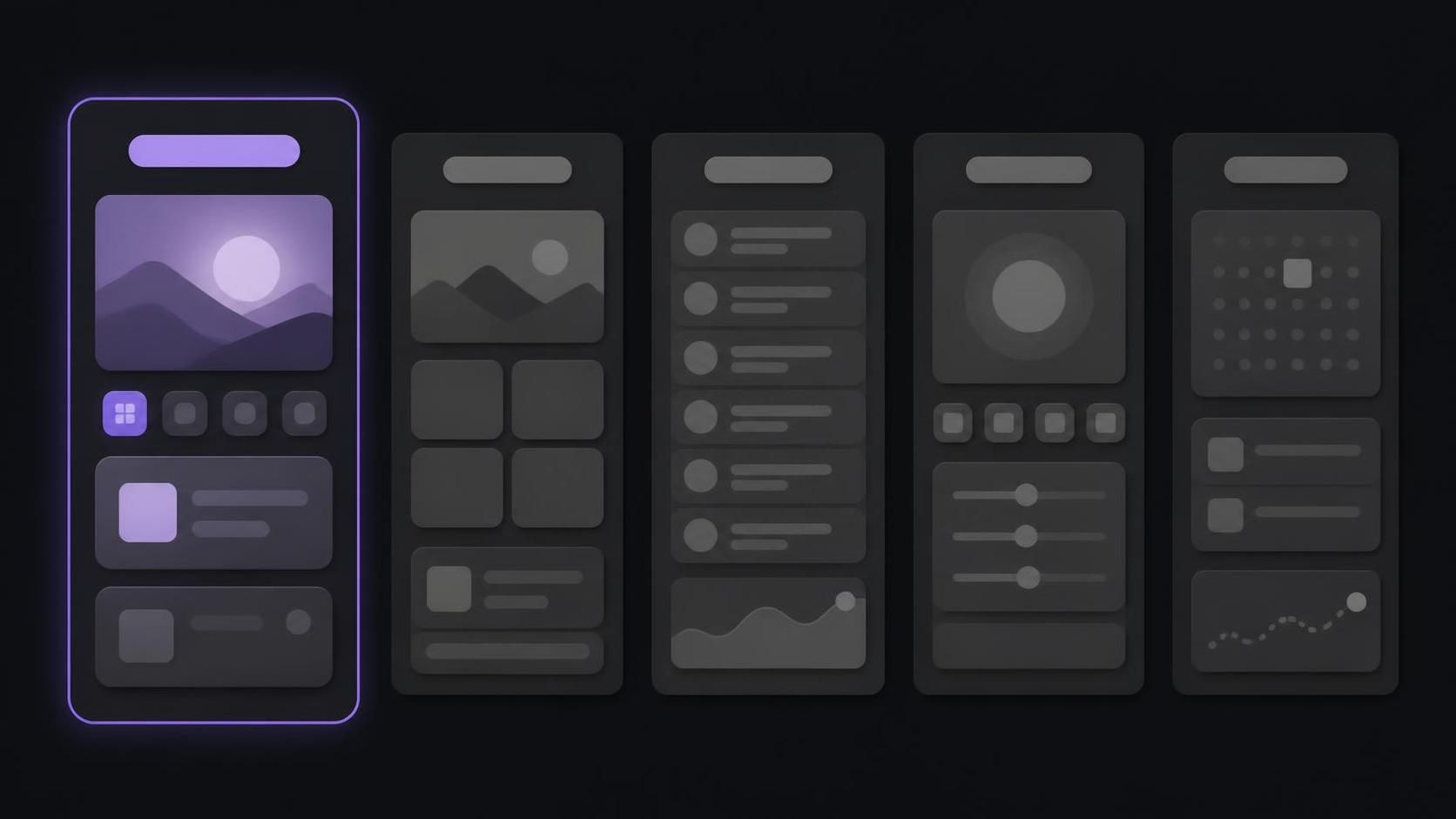
How do I design App Store screenshots that get downloads when I'm not a designer? Plan five screenshots, one benefit each, strongest first: Apple shows the first one to three in search. Put real app UI under a short caption, keep text large and high-contrast, and build the set once at 1320 × 2868 so App Store Connect can scale it down.
This guide covers how to design App Store screenshots when you are the developer, the designer and the marketing team at once. It starts with the process, then works through the first three slots, real UI versus marketing art, captions, the plan for the whole set, sizes, testing and the mistakes that cost installs.
How do I design App Store screenshots that get downloads when I'm not a designer?
Most of the work is deciding what to say. The drawing is the easy part once that is settled, and a developer can do it with one template and a few rules. Here is the whole process in the order it pays off:
1
Write down the five things a new user gets from the app, as outcomes ("Know where your money went"), not features ("Dashboard"). Rank them.
2
Pick the screen in your app that proves each outcome. Fill it with realistic, fictional data. No empty states, no lorem ipsum.
3
Write one caption per screenshot: the outcome, in a few words, readable at thumbnail size.
4
Build one template: background, the screen, the caption. Use it for every frame so the set reads as one product.
5
Export at the largest required size, check each frame at thumbnail size on a phone, and upload.
What a non-designer can skip. Illustrated characters, 3D device renders, panoramas that run across frames, and a different layout per screenshot. All of these can work, and the App Store screenshot examples show where they do. None of them is required for a set that sells. A consistent template with clear captions beats an ambitious set that was never finished.
What you cannot skip. The order of the frames and the words on them. The rest of this guide is about getting those two right.
The first three screenshots do the selling
Apple's own product page guidance is short and specific: "the first one to three images will appear in search results when no app preview is available, so make sure these highlight the essence of your app." Then: "Focus each subsequent screenshot on a main benefit or feature."
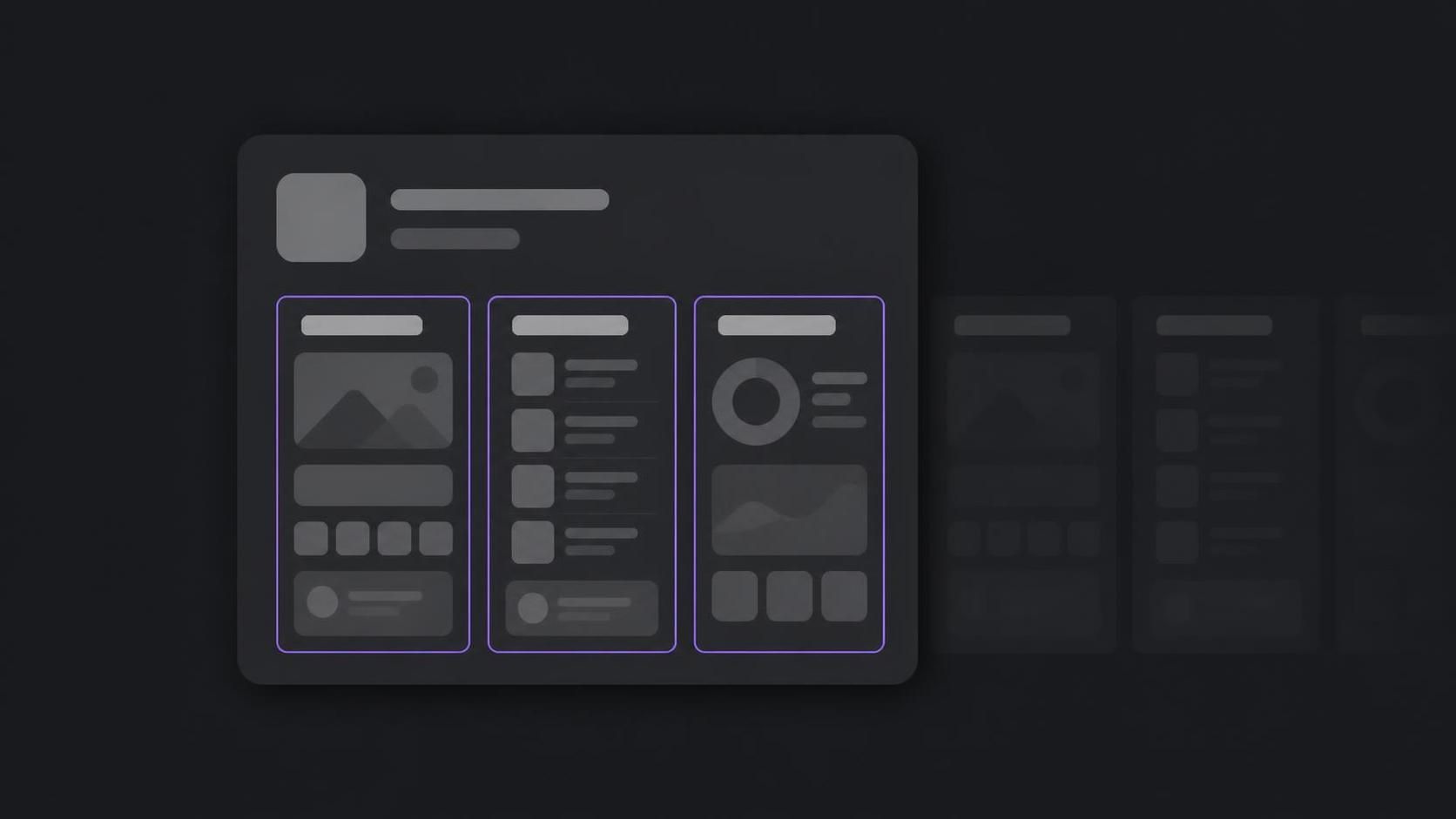
That gives the set two audiences. The first three frames talk to someone scrolling search results who has not tapped yet. Frames four onward talk to someone on your product page who is already curious. Write for the first group first.
Portrait vs landscape in search. A portrait app shows up to three screenshots side by side in a search result, so each one gets roughly a third of the screen width. A landscape screenshot takes the full row on its own, which is why Apple says "one to three". If your app is a landscape game, your first frame carries the search result alone.
Three separate jobs. A useful split for the first three:
- The outcome. What the user's life looks like with the app. This is your strongest benefit.
- The core action. The one thing a user does most often, shown in the real UI.
- The difference. Why this app and not the one next to it in the results: a feature, a price model, a platform, a privacy promise.
If your downloads are low and the first screenshot is a settings screen or a welcome page, start there. What to put on your first three App Store screenshots goes deeper on choosing and ordering them.
Real UI or marketing graphics: use both, in layers
The blog debate about "real screenshots versus marketing graphics" is mostly settled by the stores' own rules. Apple's App Review Guidelines, section 2.3.3: "Screenshots should show the app in use, and not merely the title art, login page, or splash screen. They may also include text and image overlays." Google Play's preview asset guidelines say "Screenshots must demonstrate the actual in-app or in-game experience" and ask you to "prioritize UI in the first three screenshots as much as possible."
So the real choice is how much to add around the UI, not whether to show it.
Raw UI only | UI with caption and background | Caption-only marketing art | |
|---|---|---|---|
What is on it | The bare app screen | The app screen, a short caption, a plain or gradient background | Headline, illustration, maybe a logo; no app screen |
Apple's guideline 2.3.3 | Allowed | Allowed (overlays are fine) | Rejected if it is only title art |
Google Play, first three | Fits | Fits; tagline at most 20% of the image | Against the guidelines |
Reads in a search thumbnail | Rarely; small UI text is unreadable | Yes, if the caption is large | Yes |
Tells the reader why | No, they have to work it out | Yes | Yes, but without proof |
The four layers of a screenshot. Think of each frame as a stack, from back to front:
- Background. A solid colour or a two-colour gradient from your app's palette. Same on every frame.
- Device or no device. A phone outline around the UI, or the UI edge to edge. Either works; pick one and keep it. Device frames in App Store screenshots covers the trade-off.
- The UI. A real screen from your app with realistic data. This is the proof.
- The caption. The claim the UI proves. Large, short, at the top where the eye lands first.
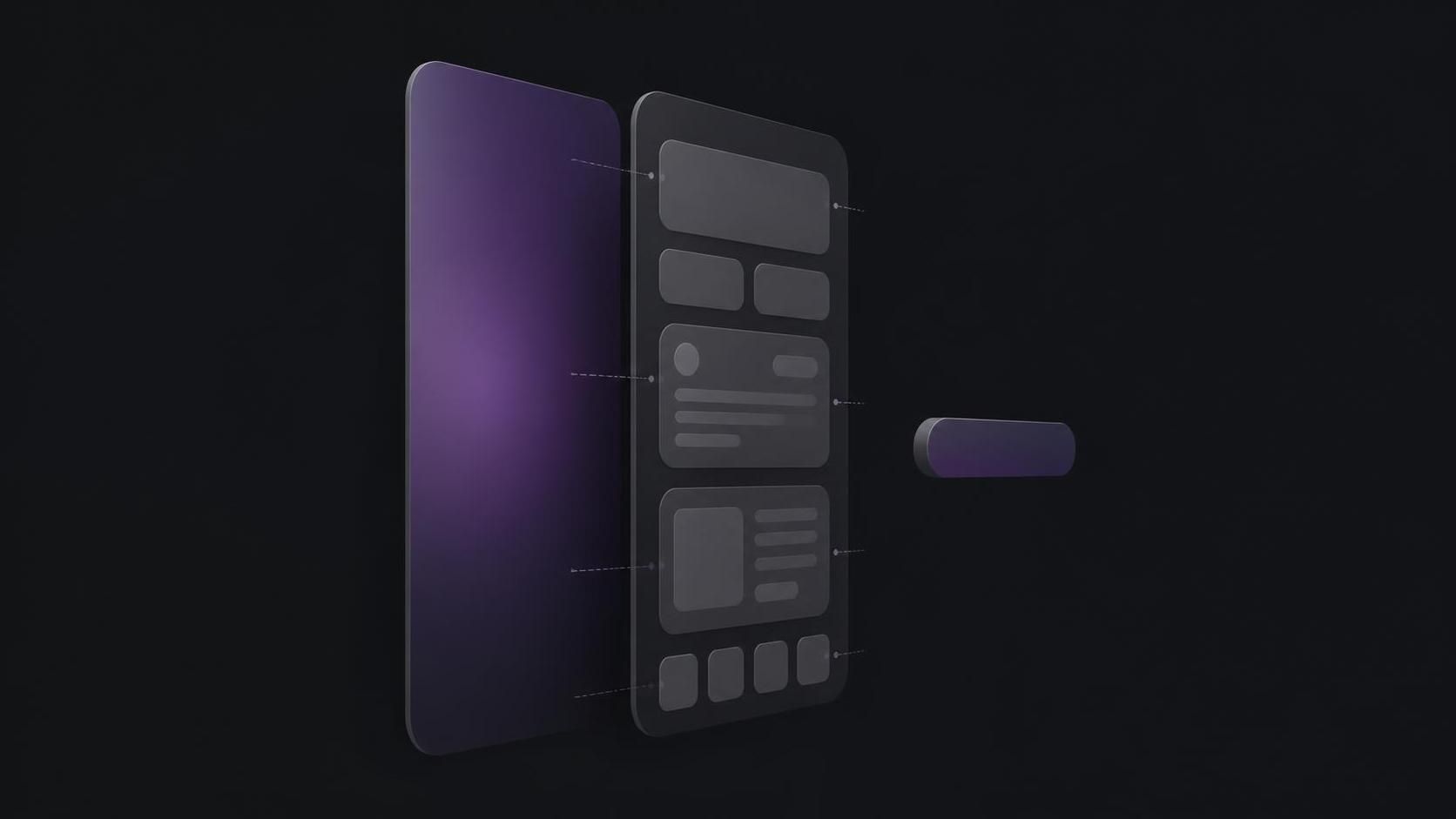
The caption sells and the UI proves. Drop either one and the frame does half its job.
Write captions that read at thumbnail size
In search, your screenshot is a fraction of its real size. A caption that looks generous on a 1320-pixel-wide canvas can turn into a grey smudge in the results. Two habits prevent that: keep the caption to one or two short lines, and check it on a phone at the size people will see it, before you upload.
Contrast. The W3C's contrast guideline asks for a ratio of at least 4.5:1 for normal text and 3:1 for large text (18 point, or 14 point bold). Captions on a busy gradient or a photo often fail it. A plain background behind the text is the simplest fix. Google Play says the same thing in its own words: avoid "text in small font sizes or backgrounds that compete with the text."
Benefit, not feature. "Track every expense automatically" says what the user gets; "Smart dashboard" makes them guess. That example comes from AppLaunchFlow's guide, and it is the most useful caption test there is: read the caption aloud and ask "so what?" If the answer is the real caption, use that.
Words the stores reject. Apple's guideline 2.3.7 says screenshots "should not include prices, terms, or descriptions that are not specific to the metadata type." Google Play's guidelines list words to avoid outright: "Best," "#1," "Top," "New," "Discount," "Sale," "Million Downloads," and calls to action such as "Download now." Leave them out on both stores and you never have to maintain two sets of copy.
How to write App Store screenshot captions has caption patterns and examples by app category.
Plan the set: one job per screenshot
Apple's screenshot specifications ask for at least one screenshot and allow up to ten per device size. Ten is a ceiling, not a target. A frame that repeats an earlier point costs the reader a swipe and tells them nothing.
A five-frame template. This order works for most utility and productivity apps:
1
Outcome: the strongest benefit, on the screen that shows it best.
2
Core action: the thing users do most, mid-task, with realistic data.
3
Difference: the feature or model the competitors in your search results lack.
4
Proof: a result, a history view, a finished export; something that shows the app delivers.
5
Range: a second platform, a widget, dark mode, or the settings that matter to power users.
Each frame stands alone. People swipe fast and land on frames out of order. A caption that says "Step 2" or "And then..." depends on a frame they may not have seen. AppLaunchFlow puts it well: avoid "narrative dependencies such as 'Step 2' unless the preceding step is guaranteed to be visible."
When to go past five. Add frames when you have distinct features that serve distinct users: a pro mode, an iPad layout, a widget, a watch app. Apple notes that "if your app supports Dark Mode, consider including at least one screenshot that showcases what the experience looks like." That is a good sixth frame for many apps. Stop when the next frame would repeat a point.
Localize the captions. Apple's product page guidance asks you to localize screenshots "for each of the markets in which you offer your app." Captions are where translation matters most; the UI underneath can often stay. How to localize App Store screenshots covers which languages to start with and how to handle long German captions.
Build the set once at the largest size
Apple's specifications are the source of truth here: "If your app's user interface is consistent across multiple device sizes and localizations, you only need to provide screenshots for the highest required resolution. App Store Connect automatically scales them down for smaller device sizes." Two canvases cover most apps.
| Slot | Portrait size (px) | When you need it |
|---|---|---|
| iPhone, Dynamic Island, large display | 1320 × 2868, 1290 × 2796 or 1260 × 2736 | Design here. One of these covers iPhone. |
| iPhone, Face ID, large display | 1284 × 2778 or 1242 × 2688 | Only if you do not provide the Dynamic Island size |
| iPad, 13-inch display | 2064 × 2752 or 2048 × 2732 | If the app runs on iPad |
| Google Play, phone | 320 to 3840 px per side, long side at most twice the short side | Up to 8 per device type |
Apple accepts .jpeg, .jpg and .png, and the images "can't include alpha channels or transparencies." A PNG exported from a design tool with a transparent corner is the most common reason a finished set bounces. App Store Connect screenshot rejected covers that and the other upload errors, and the full size table for every device is in App Store screenshot sizes 2026.
Reusing the set on Google Play. Most of the design carries over: the order, the captions, the background. Google Play allows up to 8 screenshots per device type, accepts JPEG or 24-bit PNG without alpha between 320 and 3840 pixels, and wants the long side no more than twice the short side. Two things change. Taglines should stay under 20% of the image, and the guidelines say to avoid device imagery, so an iPhone frame does not belong there. Apple's guideline 2.3.10 makes the reverse point: no "names, icons, or imagery of other mobile platforms" in App Store screenshots. Build one template, swap the screen and the frame per store. Everything else Google Play asks for, from the feature graphic to the icon, is in the Google Play store listing graphics guide.
How to build it without a design tool. The template is the part worth automating. In a design tool such as Figma you get full freedom and free community templates, and you size every frame by hand. ListingShots, our app, is a desktop canvas built for this one job: rows of frames sized by store presets (iPhone, iPad, Google Play) or a custom size such as 1320 × 2868, real screenshots dropped in, captions in one of three bundled fonts, solid or two-colour gradient backgrounds, and PNG export of every frame you select in one pass. It is a one-time purchase of $15.99. It does not make app preview videos; if you want those, a video-capable tool is the better choice.
Test with Product Page Optimization, not opinions
Everything above is a good starting point. What converts for your app is an empirical question, and Apple gives you a free way to answer it. From Apple's Product Page Optimization page: you can "test up to three alternate product page versions against your original," you "can create one test at a time which will run for up to 90 days," and Apple recommends waiting until a treatment is "performing better or worse than the baseline with at least 90% confidence." New screenshots in a treatment go through App Review, but a test without alternate icons does not need a new app version.
Three rules keep a test readable:
- One variable. Change the first screenshot's caption, or its background, or its order. Not all three. If you change several things and conversion moves, you will not know which one did it.
- The biggest change first. A new first frame is a bigger change than a new fifth frame. Small apps get few impressions, and only large differences reach 90% confidence in 90 days.
- Write the hypothesis down first. "A caption about the outcome beats one about the feature" is a test. "Try purple" is not.
Custom product pages. A different tool for a different job. Apple lets you publish up to 70 custom product pages, each with its own screenshots, promotional text and previews, reached by their own URL, by Apple Ads, and in relevant search results. If one ad campaign targets students and another targets teams, each can land on screenshots made for it.
Does Apple read caption text? Some ASO vendors reported in 2025 that Apple started indexing the words in screenshot captions for search. Apple has not documented it. When ConsultMyApp tested 64 screenshot phrases across 8 apps, 36 did not rank, 27 were explained by the apps' existing title, subtitle or keywords, and one was unexplained. Their conclusion was that there is no strong evidence. Write captions for people; if they also match your keywords, that costs nothing.
How to A/B test App Store screenshots walks through setting up the test in App Store Connect.
Mistakes that sink indie screenshot sets
Run through these before you upload. Most come straight from the store rules quoted above.
1
The first frame is a login, onboarding or splash screen. Apple 2.3.3 rejects screenshots that show only these, and it wastes your best slot.
2
An empty state or placeholder data. A to-do app with no to-dos proves nothing. Fill screens with realistic, fictional content.
3
Real customer names, emails or messages. Apple 2.3.9 asks for "fictional account information instead of data from a real person."
4
A price, "#1" or "Download now" in the image. Apple 2.3.7 and Google Play both rule these out.
5
An Android phone in App Store screenshots, or an iPhone frame on Google Play. Apple 2.3.10 and Google Play both say no.
6
Captions you can only read at full size. Check every frame on a phone at search-result size.
7
Two or three features crammed into one frame. One frame, one claim.
8
A different layout on every frame. The set should look like one product.
9
English captions in every market. Localize the captions at least, for the markets you sell in.
10
A transparent PNG. Apple rejects images with an alpha channel.
Once the set is up, the panoramic screenshot guide and App Store screenshot templates are the next places to look if you want to go further.
Frequently asked questions
FAQ
Frequently asked questions
Both, layered. Apple's guideline 2.3.3 asks for the app in use rather than just title art, a login page or a splash screen, and it allows text and image overlays. Google Play asks you to prioritize UI in the first three. So show the real screen and put a short caption above it that says why it matters.
Yes, for most apps. Apple allows one to ten per device size, but more frames only help if each adds something new. Make sure the first three cover the main outcome, the core action and what sets you apart, since those show in search. Add a sixth for dark mode or a second platform if you have one.
No. Apple says that if your UI is consistent across device sizes, you only need screenshots for the highest required resolution, and App Store Connect scales them down. Provide one of the large Dynamic Island sizes, such as 1320 × 2868, and add iPad 13-inch screenshots only if your app runs on iPad.
Mostly. The order and captions carry over. Google Play accepts 320 to 3840 pixels per side with the long side at most twice the short side, up to 8 per device type, as JPEG or 24-bit PNG without alpha. Remove iPhone frames, since Play advises against device imagery, and keep taglines under 20% of the image.
Apple has not said so. Some ASO vendors reported it in 2025, but a ConsultMyApp test of 64 screenshot phrases across 8 apps found no strong evidence: 36 did not rank, 27 were explained by existing metadata, and one was unexplained. Write captions for people first.
If your app supports it, show it once. Apple suggests including at least one screenshot that shows the Dark Mode experience. Keep the rest of the set in one mode so it reads as a single product, and use dark mode as a later frame rather than the first.
✦
One template, every store size
One-time $15.99. No subscription. A desktop app for Mac and Windows that lays out every screenshot of the set on one canvas and exports each frame as a PNG at the size the store asks for.
macOS 12+ · Windows 10+ · One-time purchase