Guide

iPhone 6.7-inch screenshot size: still accepted?

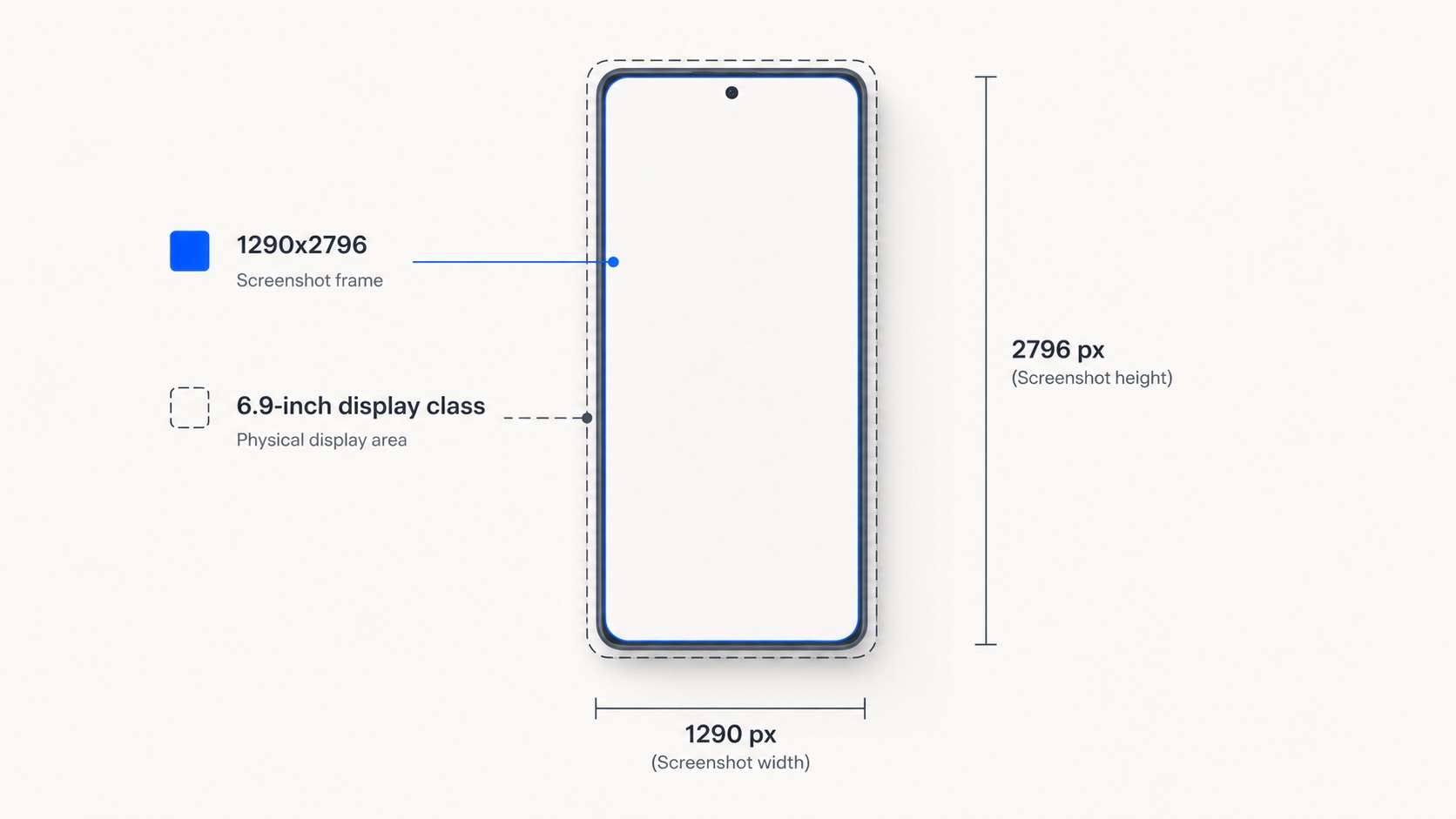
A vertical smartphone screenshot frame labeled 1290x2796 nested inside a slightly larger frame labeled 6.9-inch display class, with thin measurement guide lines

You will know whether your 1290x2796 screenshot still passes App Store review, which size to lead with, and exactly how to export and upload it.

Published May 31, 2026 · 7 min read

See ListingShots →

TLDR

Yes, the iPhone 6.7-inch 1290x2796 screenshot is still accepted; you do not strictly need the 6.9-inch size. Apple now lists 1290x2796 as an accepted portrait size inside the 6.9-inch display class. It passes review, but 1320x2868 is the native top size and looks sharper on Pro Max.

Is the iPhone 6.7-inch 1290x2796 screenshot still accepted, or do I need the 6.9-inch size now?

Answer: Yes, 1290x2796 is still accepted. Apple lists it as one of three portrait sizes inside the 6.9-inch display class, alongside 1320x2868 and 1260x2736. You are not forced to re-export, but 1320x2868 is the native top size and renders sharper on Pro Max devices, so lead with it where you can.

Why the size still passes review. Apple's validator checks each upload against the list of accepted dimensions for the targeted display class, not against a single canonical size. The 6.9-inch class currently accepts three portrait resolutions — 1320x2868, 1290x2796, and 1260x2736 — so a 1290x2796 file matches an entry in that allow-list and clears validation without complaint.

When you should re-export at 1320x2868. If your master canvas can produce 1320x2868 without resampling, do it. Pro Max devices render that resolution pixel-native, while 1290x2796 sets are upscaled the last 30 vertical pixels, which softens text edges in the listing carousel. For any new launch or relaunch where the listing is competing on first impression, the native size is worth the export.

Portrait size (px)

Status in 6.9-inch class

Primary devices

Pro Max rendering

1320 × 2868

Native top size

iPhone 16 Pro Max, 17 Pro Max

Pixel-native, sharpest

1290 × 2796

Accepted

iPhone 14 Pro Max, 15 Pro Max, 15/16 Plus

Upscaled on 16/17 Pro Max (slight softness)

1260 × 2736

Accepted

iPhone Air

Pixel-native on iPhone Air, upscaled on Pro Max

How Apple folded 6.7-inch into the 6.9-inch display class

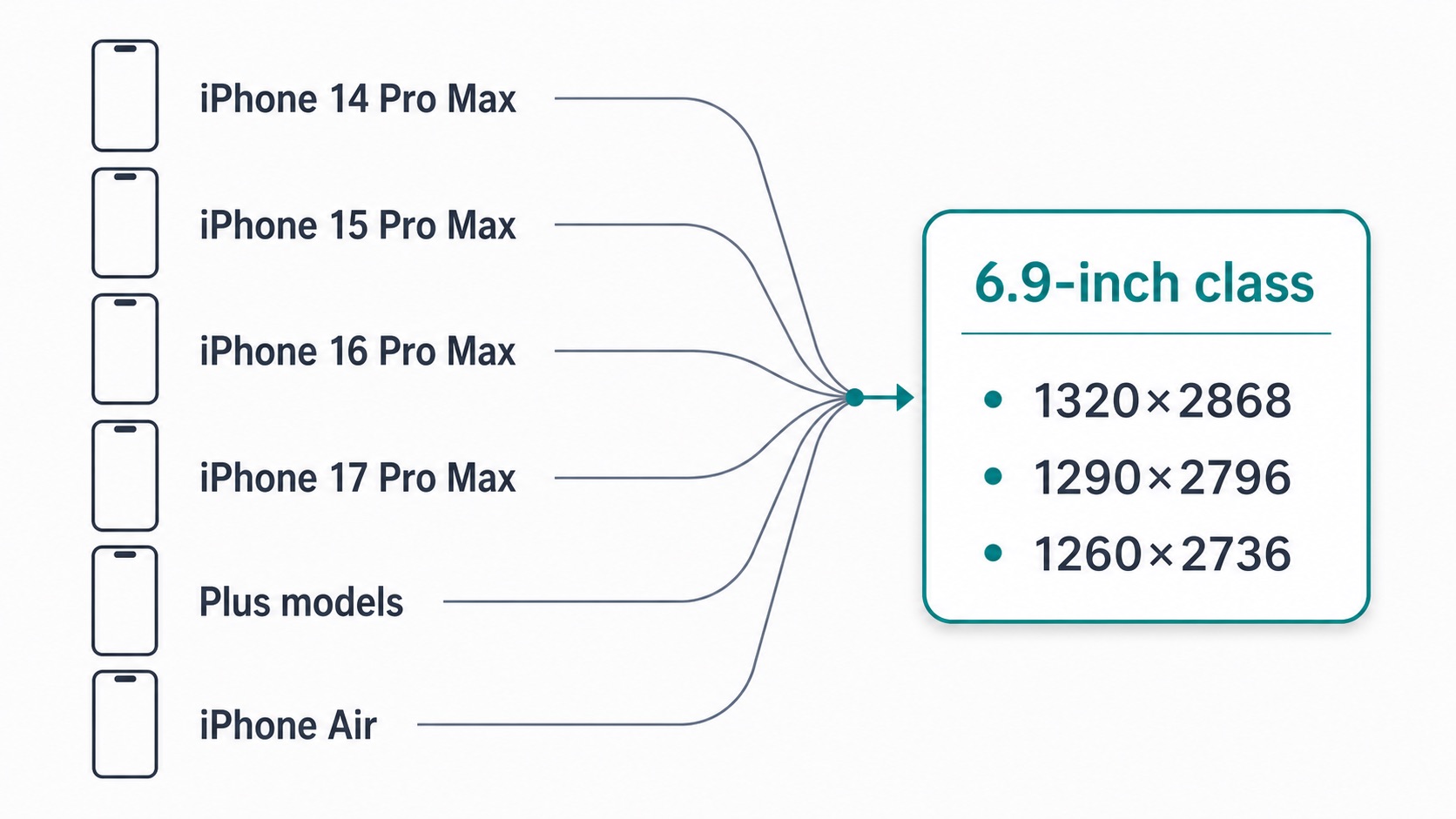
Answer: Apple no longer shows a standalone 6.7-inch slot. In App Store Connect the 1290x2796 resolution now sits inside the 6.9-inch display class, which groups iPhone 15 Pro Max, 16 Pro Max, 17 Pro Max, the Plus models, and iPhone Air. One upload at the largest size scales down to every smaller iPhone automatically.

The device-to-class mapping. The 6.9-inch class covers every iPhone with a 6.7-inch or larger panel currently in shelves — the iPhone 14 Pro Max, 15 Pro Max and 15 Plus, 16 Pro Max and 16 Plus, 17 Pro Max, and iPhone Air. They all read the same uploaded set; Apple picks the variant closest to the device's native panel and scales the rest. For the full multi-device picture see the App Store screenshot sizes 2026 reference.

What the upload field is labeled now. The old "6.7-inch Display" field has been merged into the "6.9-inch Display" slot. If you opened App Store Connect expecting a separate 6.7-inch upload area and could not find one, that is why. Drop your existing 1290x2796 files into the 6.9-inch slot; the validator treats them as a valid 6.9-inch class entry.

Mapping diagram showing iPhone 14 Pro Max, 15 Pro Max, 16 Pro Max, 17 Pro Max, the Plus models, and iPhone Air converging into a single 6.9-inch display class container listing three accepted pixel sizes

iPhone 15 Pro Max screenshot dimensions and where it sits today

Answer: The iPhone 15 Pro Max screenshot dimension is 1290x2796 pixels in portrait, or 2796x1290 in landscape. It belongs to the 6.9-inch display class. That exact size is still accepted, but Apple treats 1320x2868 as the native top size for the class and scales other accepted sizes to fit larger screens.

The 15 Pro Max panel is 1290 by 2796 pixels, so a 1290x2796 export is pixel-native on that device. On a 16 Pro Max or 17 Pro Max the same file is scaled the small distance to 1320x2868, which is rendered fine but slightly softened on dense text. If your audience skews toward owners of the very newest hardware — which most first-time buyers do — leading with 1320x2868 buys you a sharper carousel without any other change in workflow.

Fallback vs required: what a 6.7-inch-only upload actually does

Answer: A 1290x2796-only upload passes review because it is an accepted size for the 6.9-inch class. Apple then scales it up to fill 1320x2868 screens, which can soften text edges on Pro Max devices. It is valid, not blocked, but not pixel-native on the largest current displays.

The practical distinction is between "accepted" and "native." Accepted means the validator lets it through and the review pipeline does not flag it. Native means the file matches the target panel pixel-for-pixel and shows zero upscale blur. A 1290x2796 set is accepted everywhere in the 6.9-inch class and native only on the 15 Pro Max. A 1320x2868 set is accepted everywhere and native on the 16 Pro Max, 17 Pro Max, and iPhone Air's largest panel.

The visible cost of upscale is small but real on dense screenshots — fine UI text, hairline icon strokes, and gradient banding all soften by a few pixels. A forthcoming guide on why exported screenshots look blurry walks through the upscale-blur problem in detail.

What export settings (DPI, color profile, canvas) make a compliant 6.7-inch App Store screenshot

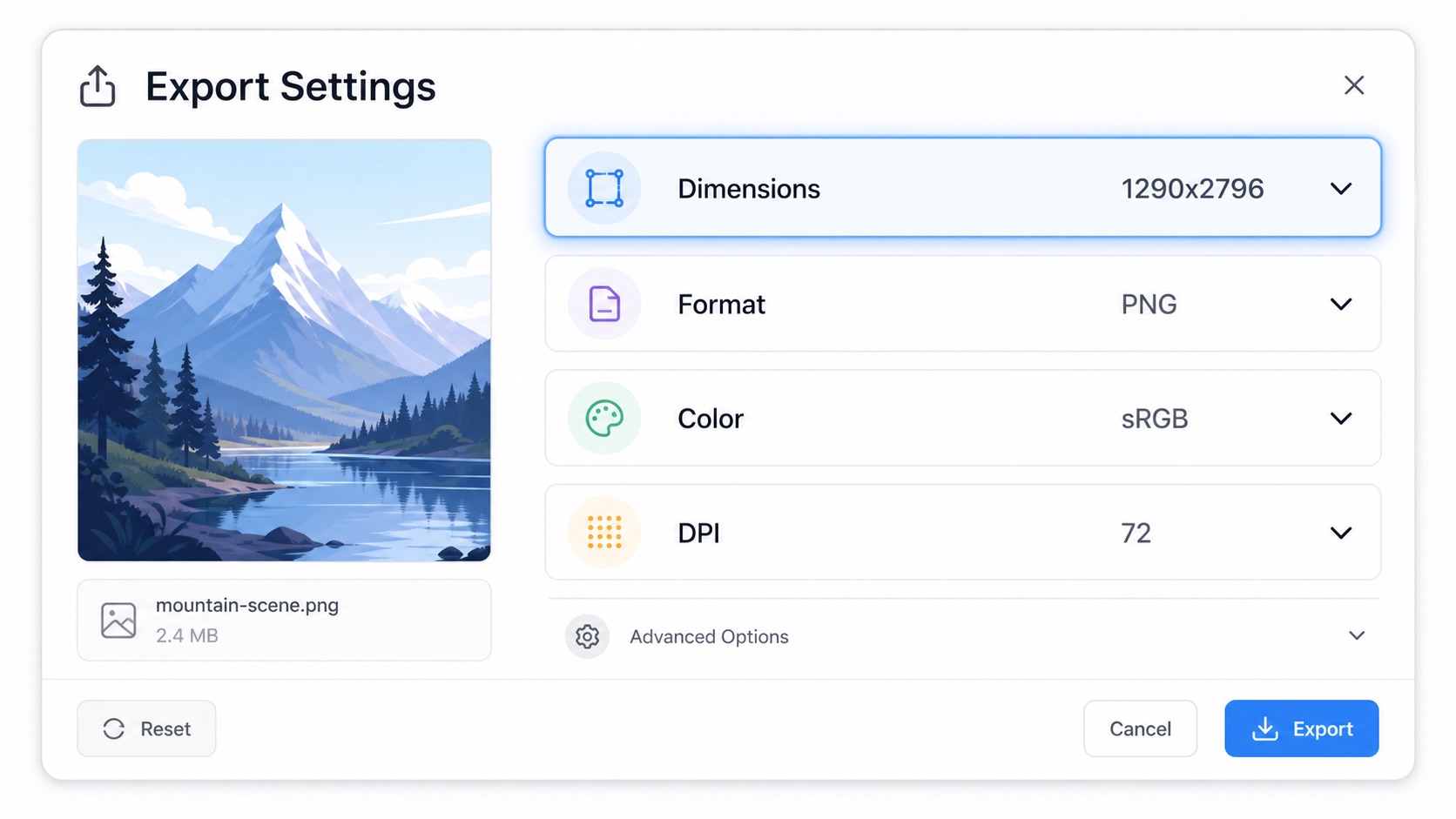
Answer: Export at exactly 1290x2796 pixels portrait, PNG or JPEG, no alpha channel, sRGB color profile, and 72 DPI minimum. Keep the file under 500 MB; optimized PNGs land under 5 MB. Match the pixel count exactly because Apple validates dimensions before upload and rejects files even one pixel off.

Canvas and pixel-exactness. Lock your canvas to integer dimensions before export. The most common silent failure is a design tool exporting at a fractional scaling factor that lands on 1289x2795 or 1291x2797. Apple validates the pixel count before the file reaches a human reviewer and rejects it outright. Re-export from the master canvas with explicit pixel dimensions rather than a percentage scale.

Color profile and transparency rules. Convert to sRGB before exporting. Display P3 looks identical on a Pro Max screen but Apple's validator flags non-sRGB profiles. Strip the alpha channel — PNGs with transparency are rejected even when nothing in the canvas is actually transparent. Flatten the layer stack and re-export as RGB-only PNG or JPEG.

Stylized export-settings panel UI mockup highlighting four rows: dimensions 1290x2796, format PNG, color sRGB, DPI 72

App Store screenshot generator options that run on your own machine

Answer: Most screenshot tools are web-based subscriptions that ask you to upload unreleased UI to a server, or Mac-only native apps. A one-time-purchase desktop tool that knows store dimensions and runs locally avoids both the recurring cost and the privacy tradeoff, and gives Windows developers a local option.

Online vs offline generators. Web tools ask you to upload simulator captures and any embedded marketing copy to a CDN before you have a public listing. Caches and indexers can pick those assets up before launch day. A native desktop tool keeps every file on your own disk, which matters for unreleased UI and for anyone whose threat model includes pre-announcement leaks.

What to look for in App Store screenshot software. A useful local generator ships with up-to-date preset canvases for every required dimension (1320x2868, 1290x2796, 1260x2736, plus iPad, Google Play, and Microsoft Store), runs natively on both macOS and Windows, and batch-exports from a single master file rather than asking you to repeat the export per size. See why offline matters for App Store screenshots for the longer argument.

Migrate an existing 6.7-inch listing in five steps

Answer: First, confirm your current set is 1290x2796. Second, re-export at 1320x2868 for native Pro Max sharpness. Third, open the 6.9-inch slot in App Store Connect. Fourth, replace the old set. Fifth, preview on a Pro Max device to check for upscale blur before you submit.

1

Confirm your current uploaded set is 1290x2796 — open the App Store Connect listing and check the file dimensions on each screenshot in the iPhone slot.

2

Re-export at 1320x2868 from your master canvas. Lock to integer dimensions, sRGB, no alpha channel.

3

Open the 6.9-inch Display slot in App Store Connect. The old standalone 6.7-inch field is gone; everything now lives in the 6.9-inch slot.

4

Replace the old set in place. Drag the 1320x2868 files into the slot and let Apple validate before saving.

5

Preview on a Pro Max device (or the iOS Simulator at native resolution) and check the carousel for sharpness before submitting for review.

If your build still targets older devices and you want to sanity-check the 6.5-inch fallback class, the iPhone 6.5-inch screenshot size guide breaks down 1284x2778 vs 1242x2688 and maps each dimension to its iPhone generation.

FAQ

Frequently asked questions

Export every iPhone size, locally

One-time $15.99. No subscription. Native desktop app for Mac and Windows that batch-exports 1320x2868, 1290x2796, and every other required size from a single canvas — without uploading unreleased UI to a server.

Buy ListingShots — $15.99Download the installer

macOS 12+ · Windows 10+ · One-time purchase

App Store screenshot sizes 2026 →Offline App Store screenshot generator →